
Cricut Essentials for Beginners: What You Need to Get Started!
This post may contain affiliate links · This blog generates income via ads

If you’re a beginner looking to create stunning, professional-looking projects with your new Cricut machine, you’ve come to the right place. In this blog post, I’ll cover the essential Cricut must-haves that every newbie should have in their arsenal. With the right machine, tools, and materials, you’ll be ready to design everything from custom cards and stickers to other popular projects. Armed with the right materials, tools and accessories, you’ll be well on your way to creating beautiful and unique Cricut projects you can be proud of.
Ready to learn a thing or two? Let’s get started!
Quick note: if you’re looking for some of my favourite things, be sure to check out my Amazon shop!
Table of contents
Disclosure: This post is sponsored by Cricut. All opinions are my own.
I’ve been making DIY projects with my Cricut machines since 2016, and it’s still one of my top favourite tools to craft with. My favourite projects to make with my Cricut are personalized gifts, unique home decor, and organization labels, but the options are truly endless with this cutting machine. (New to Cricut? Check out my blog post What is a Cricut machine and what does it do?)
One of the most common questions I get from friends who buy a Cricut is: What essential materials and tools do I need to get started right away? So, if you’re wondering the same thing, don’t worry — you’re not alone! With so many options out there, it can be a little overwhelming to know what’s must-have and what can wait.
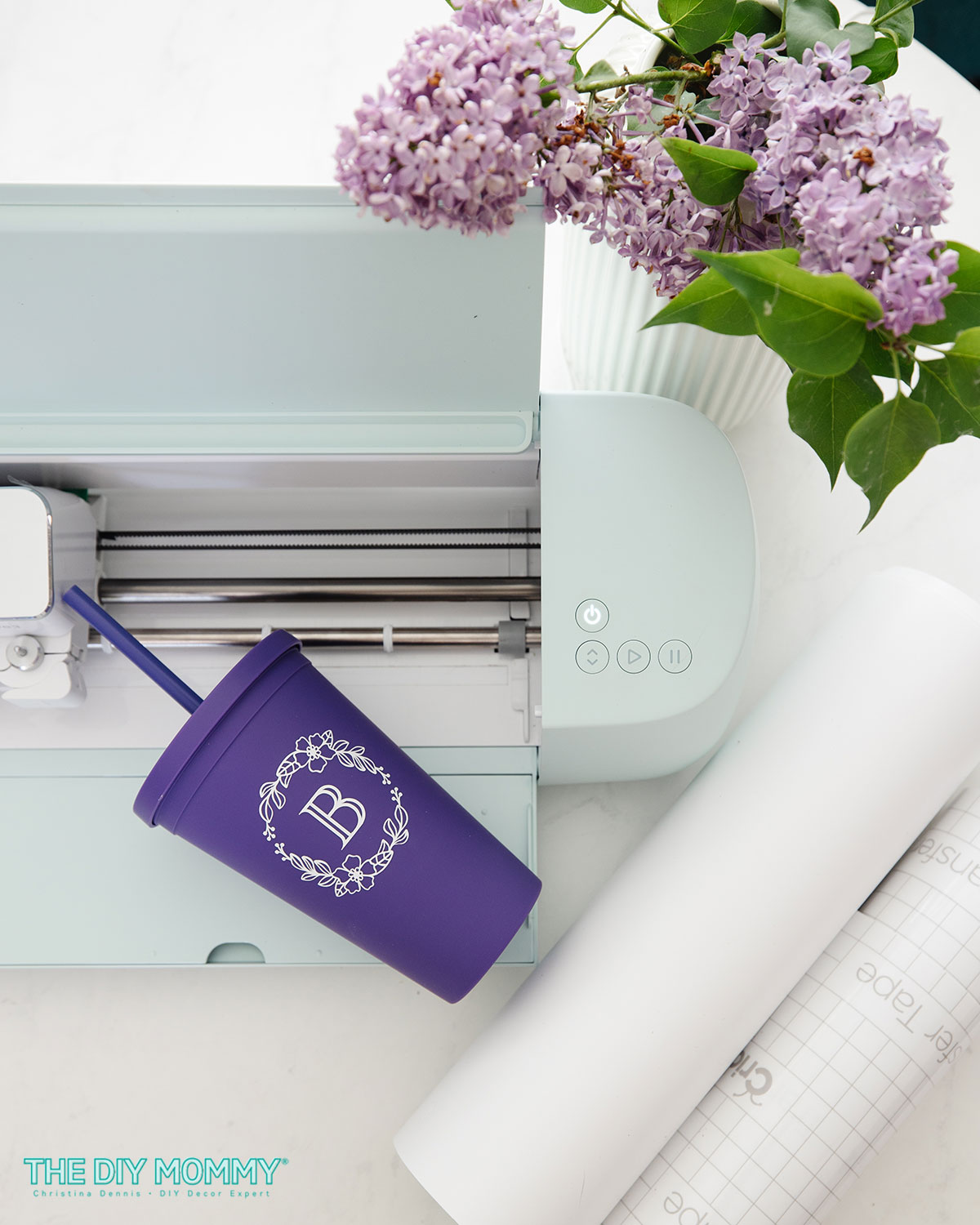
That’s where this guide comes in! In this post, I’ll walk you through the must-have materials and tools every beginner should have so you can start crafting with confidence. And to help you put your new tools to good use, I’m including a step-by-step tutorial on how to make a personalized tumbler — one of the easiest beginner-friendly projects!
Essential Cricut Materials Every Beginner Needs
Vinyl
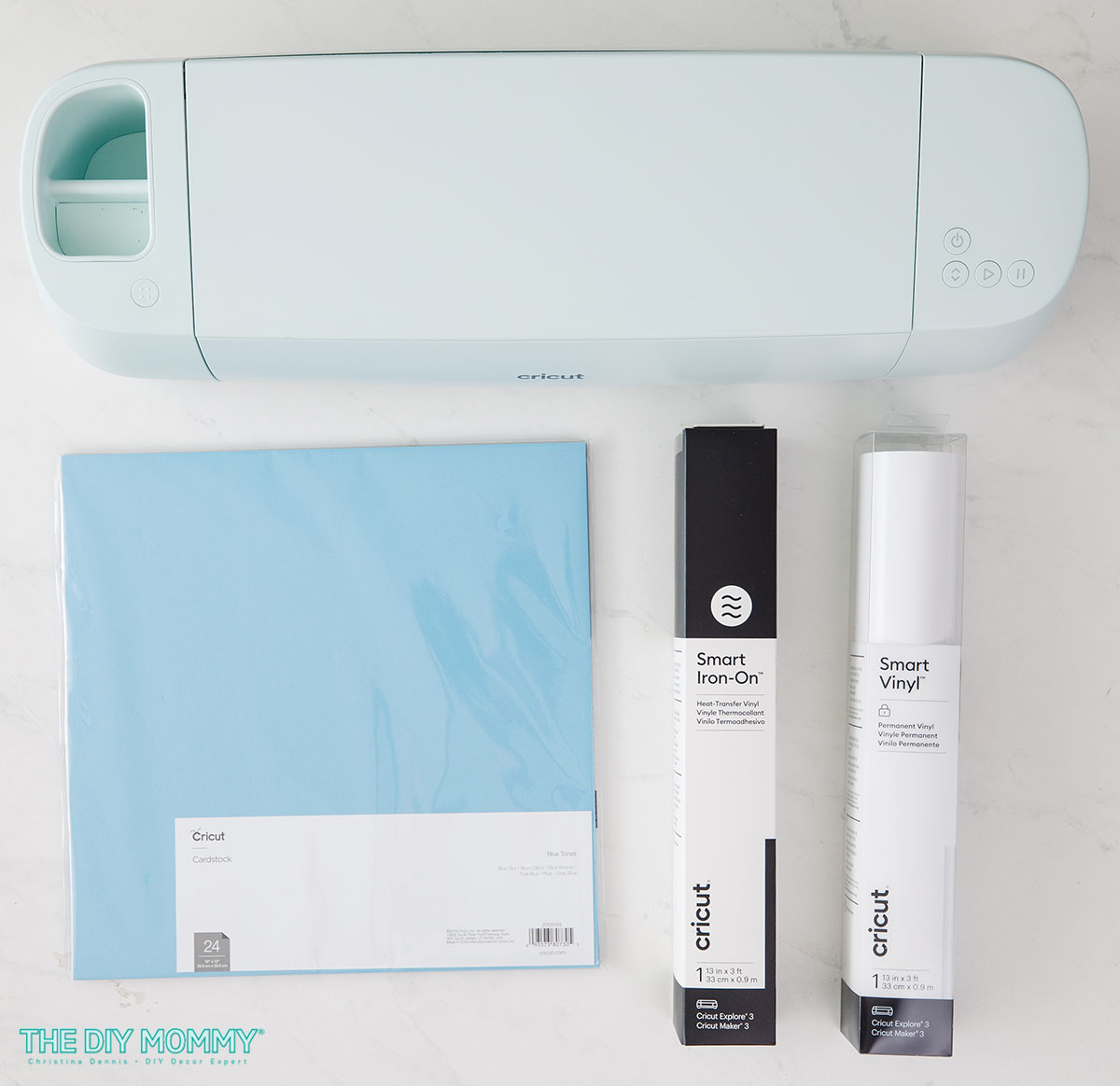
Adhesive vinyl is a must-have material for Cricut users and the first one that I would recommend purchasing. It comes in a variety of colours, finishes, and styles. It is perfect for personalizing items like mugs, cell phone cases, and home decor. When shopping for adhesive vinyl, I recommend sticking with the Cricut brand. It’s specifically designed to work perfectly with your Cricut machine. I’ve tried other brands, and I’ve had the most success with Cricut’s own vinyl when it comes to weeding (removing excess vinyl around my design) and applying it to the object I’m decorating.
- Smart Vinyl is compatible with the Maker 3 and Explore machines and these are what I use the most. (It’s also compatible with the Cricut Joy in the narrower size.) This material doesn’t require a machine mat and weeding it is a dream. It comes in permanent and removable options and it’s perfect for continuous or extra-long cuts up to 12 feet long.
- Premium Vinyl is the best choice for use with a Cricut Maker or Cricut Explore Air 2. It also comes in either a permanent or removable option depending on the project you want to make. It requires a machine mat to cut.
Want to know which Cricut machine is right for you – the Explore series, the Maker or the Joy? Click here to read my blog post all about the different machines!
Iron-On HTV (Heat Transfer Vinyl)
If you want to customize clothing, bags, or fabric items, heat transfer vinyl (also known as iron-on or HTV) is the way to go. Make sure to follow Cricut’s instructions for cutting, weeding, and applying HTV to ensure a lasting and professional finish. I recommend using a Cricut EasyPress to apply your Iron-On to your item for the longest-lasting finish.
- Smart Iron-On is like Smart Vinyl – it doesn’t require a machine mat for cutting. I LOVE this material because it’s a dream to weed. The Cricut Maker 3 or Explore 3 cuts it SO quickly. It also comes in rolls up to 12 feet long for extra-long designs.
- Everyday Iron-On is another good choice. You’ll need a Machine Mat to cut it, and it comes in a large variety of colours. Cricut often has good deals on the bulk variety pack of iron-on, too.
Cardstock
Cardstock is a versatile material that’s great for creating paper crafts like greeting cards, scrapbook pages, and home decor pieces. Choose a high-quality cardstock (usually 65lb or higher) that’s compatible with your Cricut machine. Experiment with different colours, textures, and finishes to add variety to your projects.
Cricut’s Cardstock Samplers are a great place to start. I love the texture of this cardstock, and at 80lbs it’s nice and thick for a variety of projects like scrapbooking and card making.
Essential Tools for Your Cricut Toolkit
A Computer & Cricut Design Space
In order to use your machine you will need a computer and Cricut’s software – Design Space. While you can download the Design Space app and use it on your phone or tablet, I recommend having a desktop or laptop computer with Design Space access as it will offer you a more robust experience with the program. I use both my computer and my phone to make my Cricut designs via Design Space.
Blades
For precision cuts, your Cricut machine comes with a premium fine-point blade. You may also want to invest in a deep point blade (compatible with Cricut Maker & Explore machines) for cutting thicker materials like chipboard and heavy cardstock.
Another blade/tool I love to use is the Rotary Blade. This is only compatible with the Maker, but it’s fantastic for cutting fabric and crepe paper if you use that machine.
Basic Tool Set for Weeding & Lifting
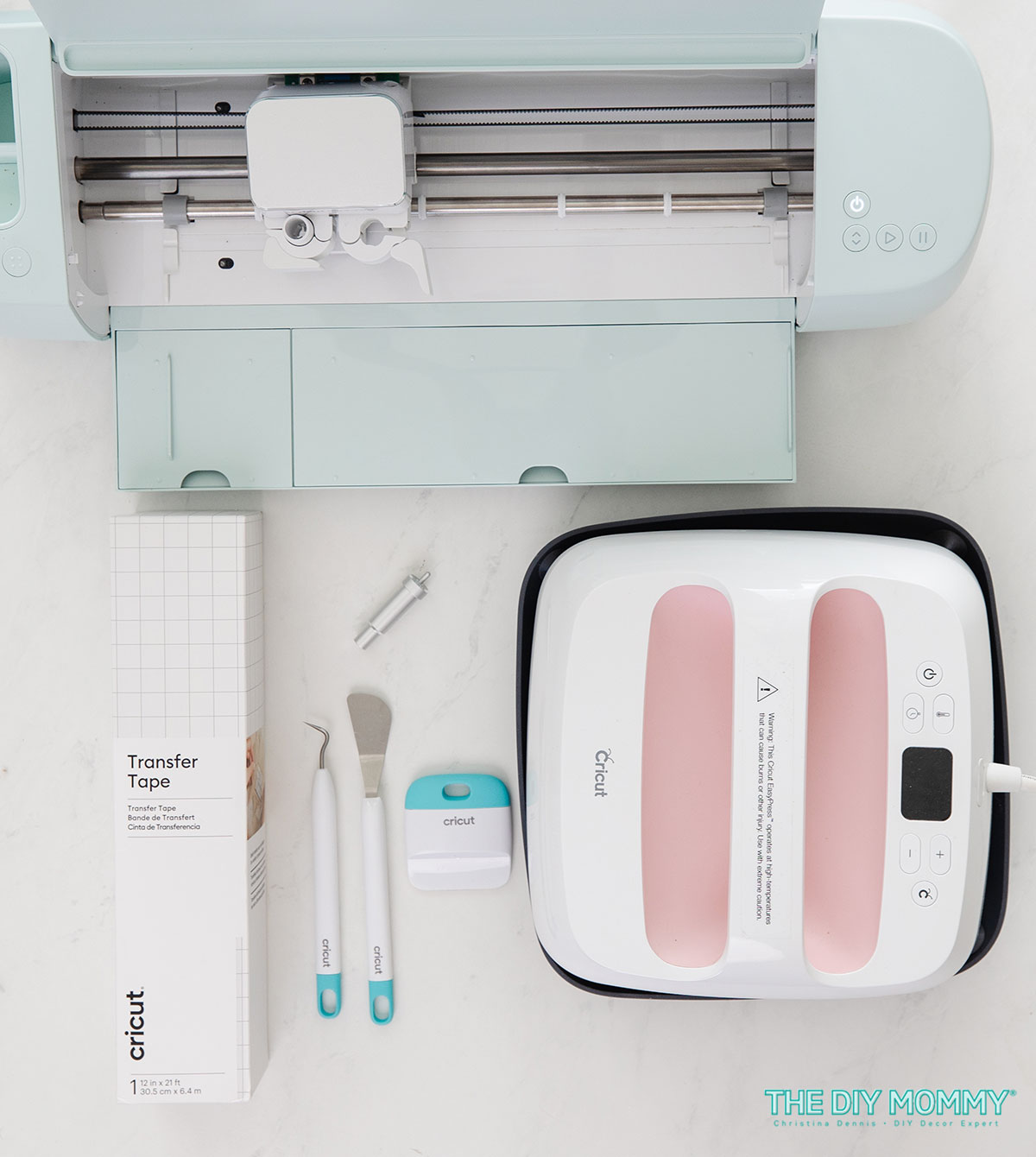
Weeding tools help you remove excess material from your cuts, making it easier to transfer designs onto your project surface. A basic weeding tool kit should include a hook, tweezers, scissors, and a scraper. A spatula is another essential for lifting delicate cut-outs off your cutting mat without damaging them. I like Cricut’s Basic Tool Set because it comes with all of the basic tools you may need to weed and transfer your designs. There’s also Cricut’s Essential Tool Set that comes with even more tools, like the scoring stylus and trimmer.
(You may want to add a scoring stylus to your tool kit if you plan to do cardstock projects like greeting cards and paper flowers. It creates beautiful score lines for folding.)
Transfer Tape
Cricut vinyl transfer tape is necessary for moving adhesive vinyl designs from their backing to your project surface. Cricut’s grid-lined transfer tape makes for easy alignment, and it comes in a regular grip and a strong grip. Regular Transfer Tape will work with most vinyls, while the StrongGrip variety is essential for thicker vinyls like glitter vinyls.
Cricut EasyPress
While I’ve certainly used a regular household iron to transfer iron-on designs to tees & bags in the past, a Cricut EasyPress (their very own heat press) is an essential tool for making a more professional & long-lasting project. Not only can you adjust the temperature of the EasyPress, but you can also set a built-in timer so you know exactly how long to press your design for the best result. I find my 9×9 EasyPress works well for most of my projects like t-shirts, tote bags, and labels.
Optional Cricut Tools, Materials & Accessories for an Enhanced Experience
In addition to the above Cricut essentials for beginners, here are some other top products and popular materials that can help make the most of your Cricut crafting experience.
- Cricut Access Subscription: While there are some free fonts and images in Cricut Design Space and you can upload your own, I highly recommend a Cricut Access Subscription. This is especially useful if you use your Cricut often and want access to over 1,000,000 images and ready-to-make projects.
- Brayer: A brayer is a small roller that helps you press materials onto your cutting mat for a smoother cut and better adhesion.
- XL Scraper: An XL scraper comes in handy for larger projects, making it easier to apply transfer tape and smooth out bubbles.
- LightGrip or StrongGrip Mats: While your Cricut machine comes with a StandardGrip mat, you might find LightGrip or StrongGrip Cricut mats useful for working with thinner or thicker materials, respectively. You won’t need to worry about using any mats at all if you’ve purchased the Cricut Explore 3 or Maker 3 and want to use Smart materials exclusively.
- Trimmer: A portable trimmer will help you create perfectly straight cuts on your vinyl and paper materials. The Cricut Roll Holder also has a built-in trimmer, and this is a nice add-on to the machine if you’re working with longer rolls of Smart Materials.
- Infusible Ink: Infusible Ink is a fun material to play with if you want an ultra-professional look for your projects. The ink looks like it melts right into the fabric (or mug if you use your Cricut Mug Press!) creating a smooth, professional look.
Storage, Organization, and Finding the Best Deals
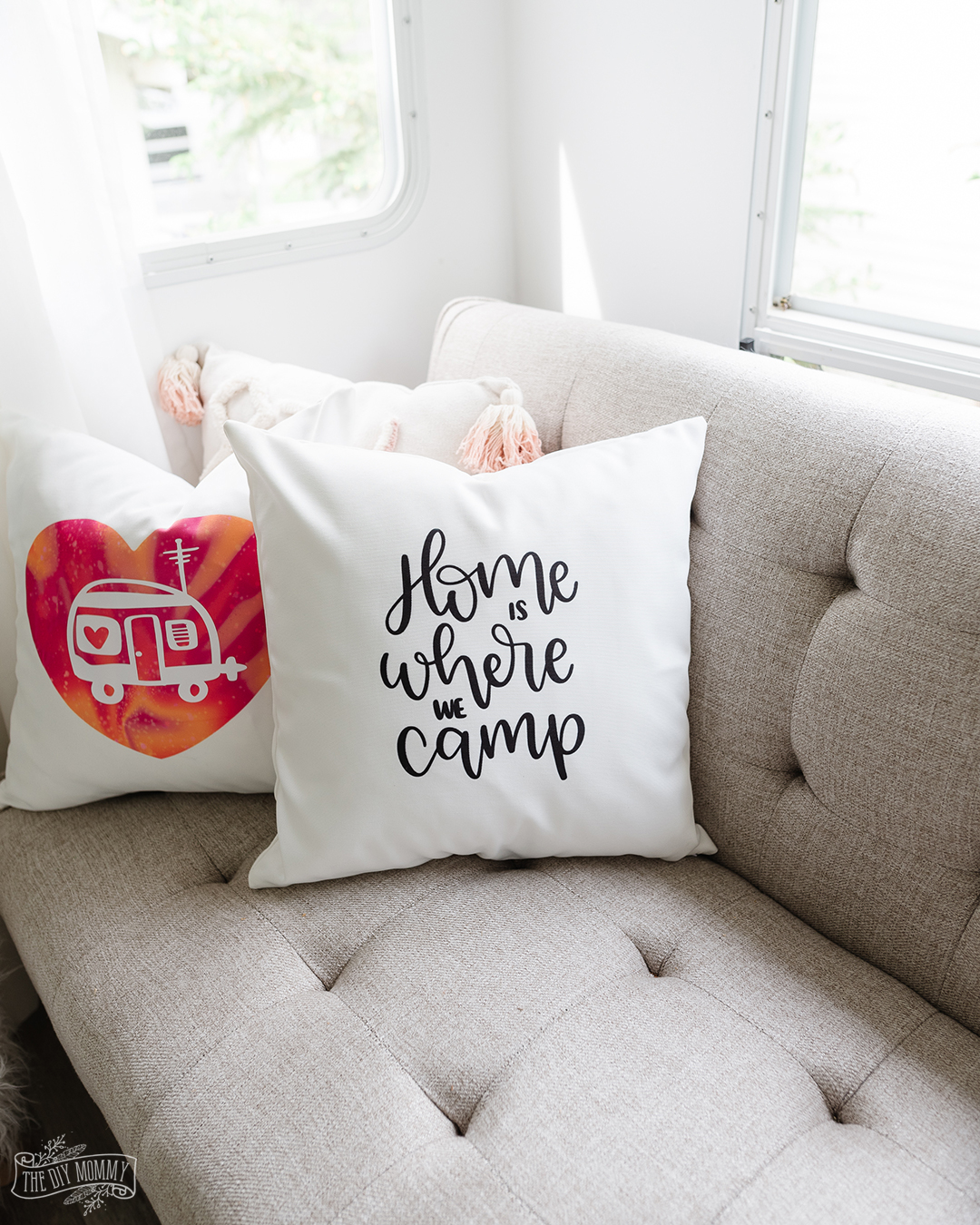
Keeping your materials and tools organized is crucial for a successful Cricut experience. Invest in a storage system that works for you, whether it’s a rolling cart, a pegboard, or a dedicated crafting space. I personally love a rolling cart for materials I’m using right now. I put the rest of the materials in drawers in my studio.
Look for deals on materials and tools right on the Cricut site. If you sign up for their newsletter, they’ll send you all the latest sales (or check the sale section here). I also find that their bundles are a great value if you want to purchase a Cricut machine, tool set, and some basic materials together.
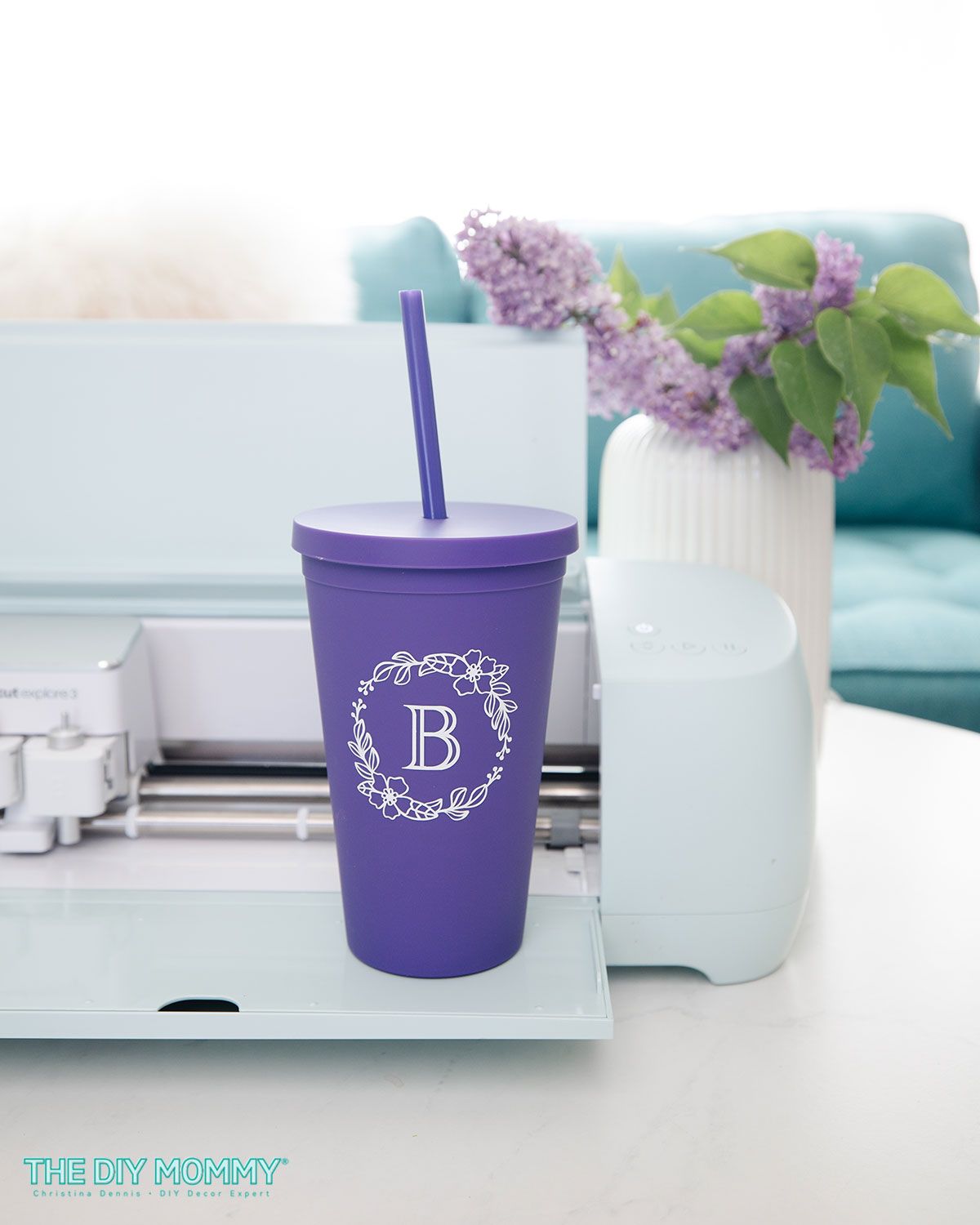
Sample First Project: A Personalized Tumbler
Now that you have your Cricut and all the essential beginner tools, it’s time to make your first project! One of my favorite beginner-friendly crafts is a personalized drink tumbler. It is trendy, practical, and the perfect small-scale project to get you comfortable with your machine.
The best part? You can use these same steps to create custom organization labels for containers, making this a super versatile beginner project.
For this DIY tumbler, we’ll keep things simple by using Cricut Design Space’s built-in Monogram Maker. A quick and easy way to personalize your design without any extra hassle.
Supplies:
- Cricut machine (I used a Cricut Explore 3 for this tutorial)
- Permanent Smart Vinyl in White
- Transfer Tape
- Alcohol Wipes
- Tumbler blank
- Cricut Essential Tool Set
Instructions:
Create your design in Design Space
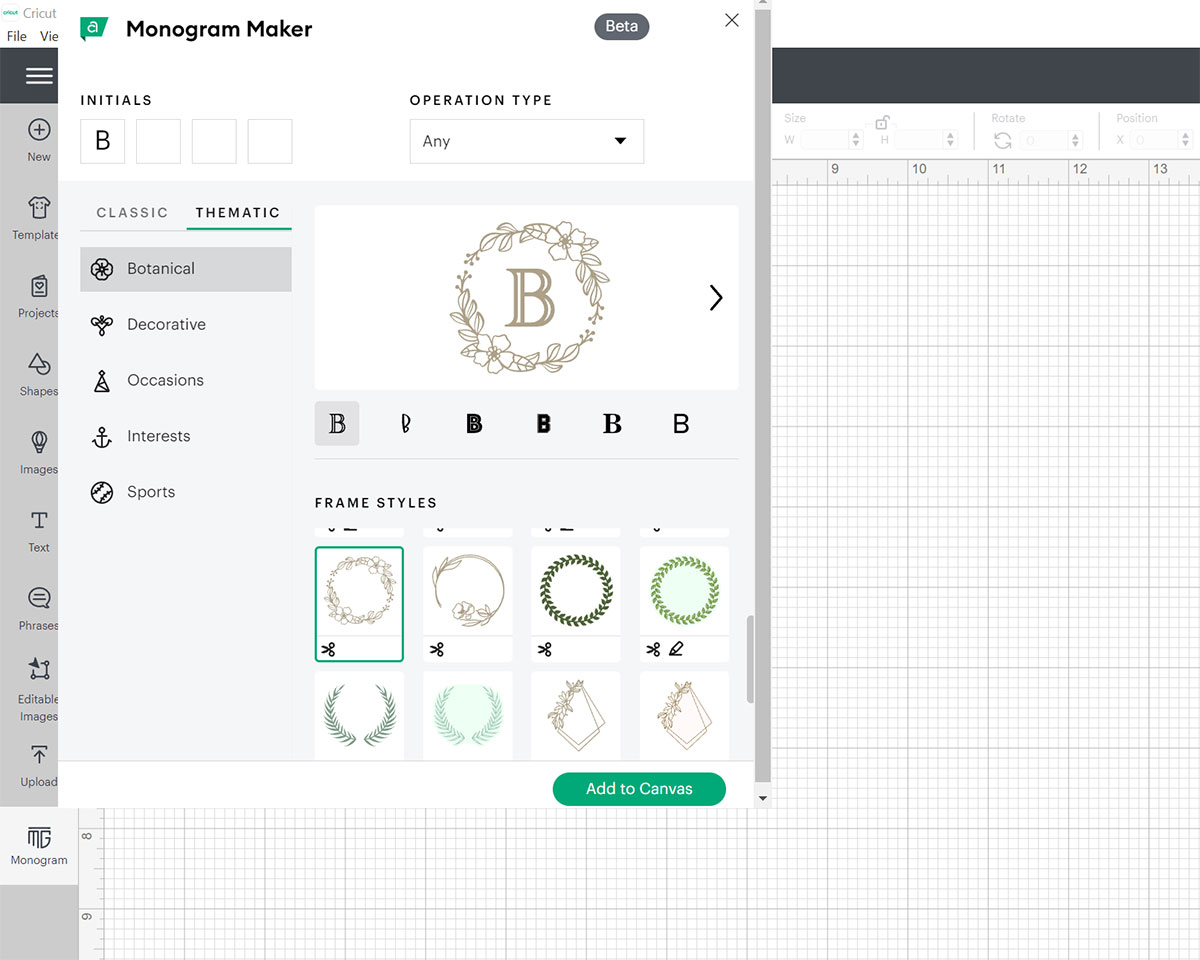
You can customize my pre-made Cricut Design Space Project by clicking here, or make your own from scratch by following the instructions below.
Begin by creating a New Project in Cricut Design Space. Next, click on Monogram on the menu on the left side. Enter the initial you want to use, choose the font, and choose the frame style. Click Add to Canvas.
Tip: For a beginner-friendly project, I recommend choosing a frame style and font style with thicker details so that your project is easier to weed and transfer.
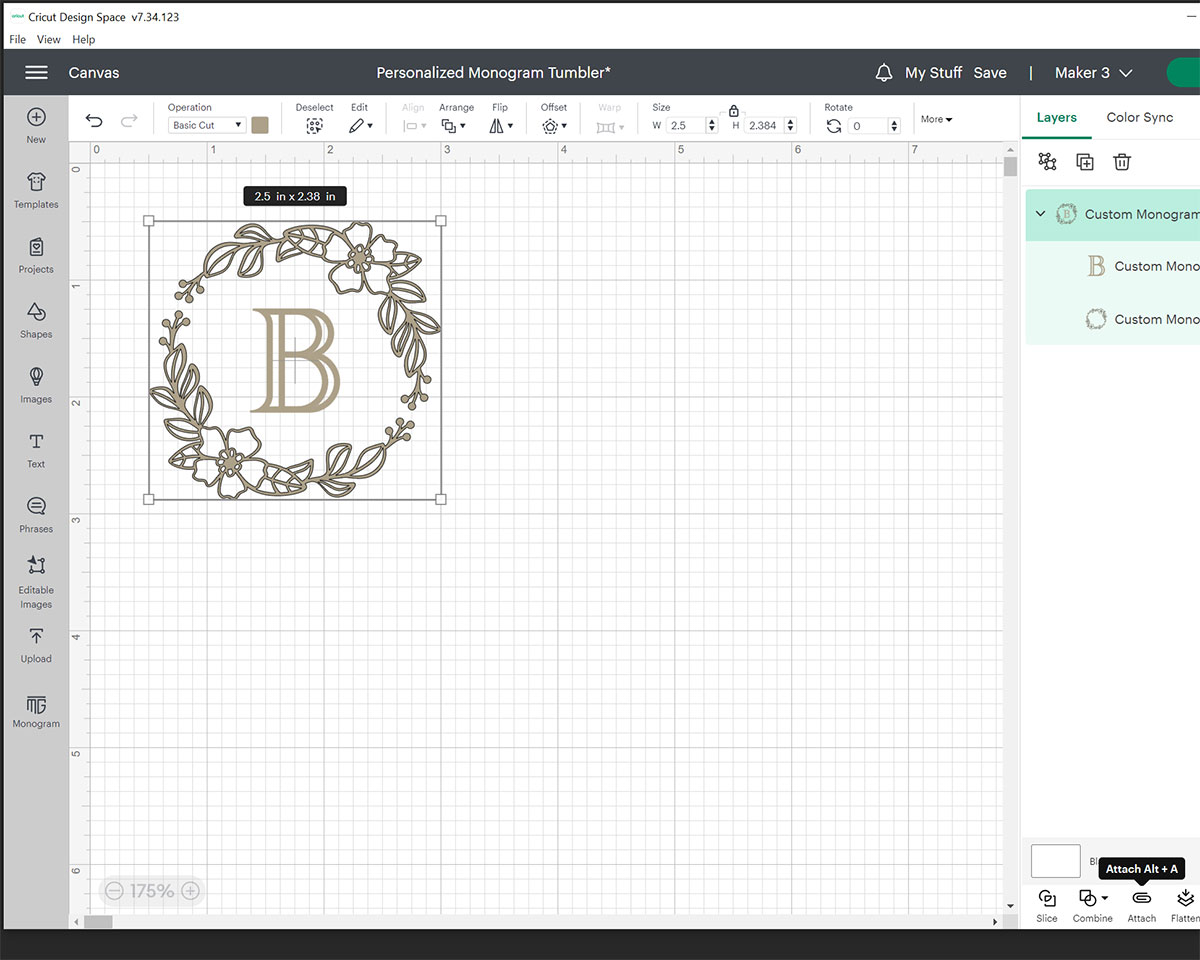
You can now adjust the size of your custom monogram design by clicking on the image and clicking and dragging the corners. You can also enter a custom size for the image by clicking on the Size boxes on the top menu. I made my monogram image 2.5 inches wide for my tumbler.
If you want your letter and surrounding design to be the same colour, select both and then click the Attach button on the bottom right. This will link the two elements together so they cut out on your vinyl as one piece.
Now, click Make It in the top right-hand corner and Design Space will walk you through getting your machine ready to cut out the design.
Cut with your Cricut Machine
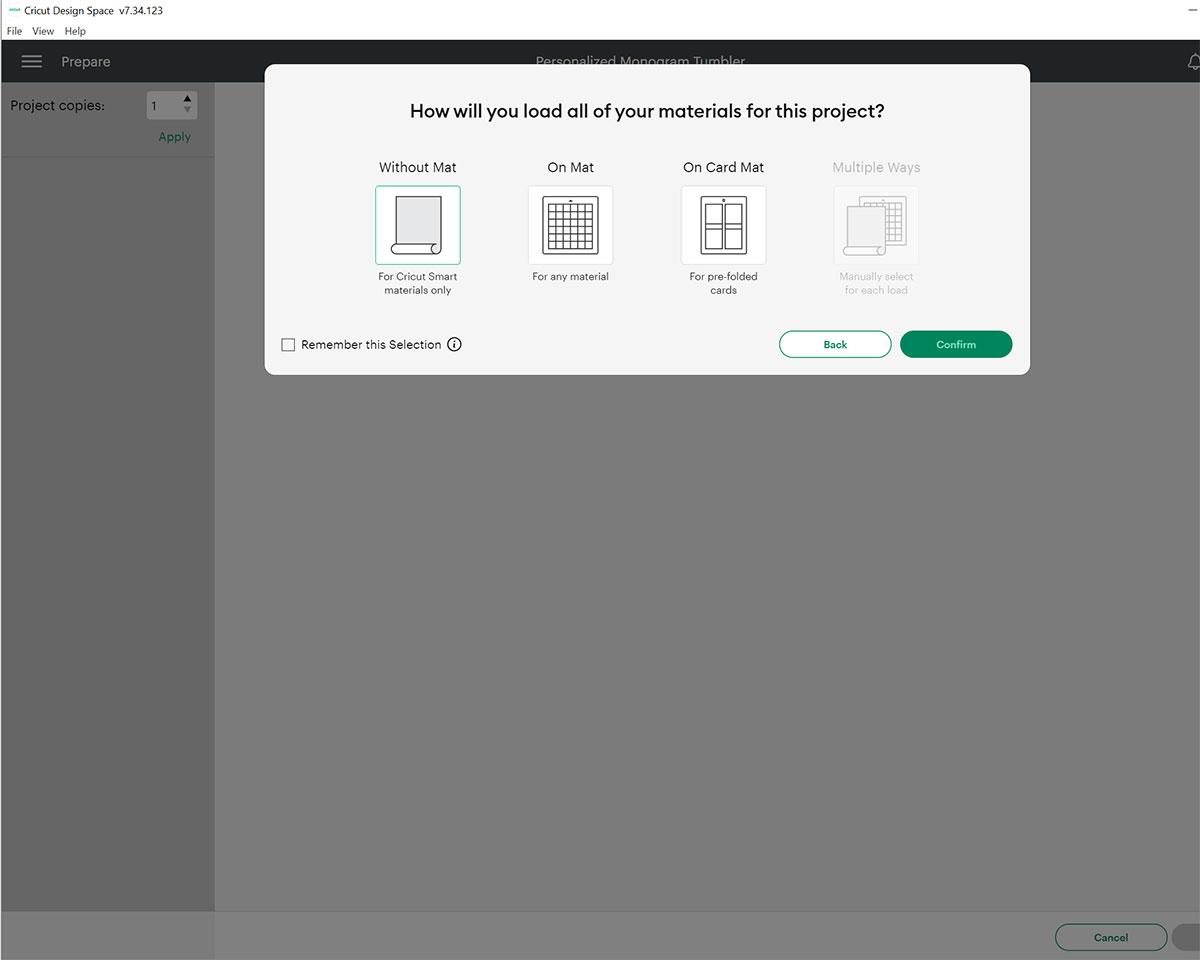
If you’re using Smart Vinyl like I am, you can now click on Without Mat & Confirm. On the next screen you can review your artwork and the size of material you will need.
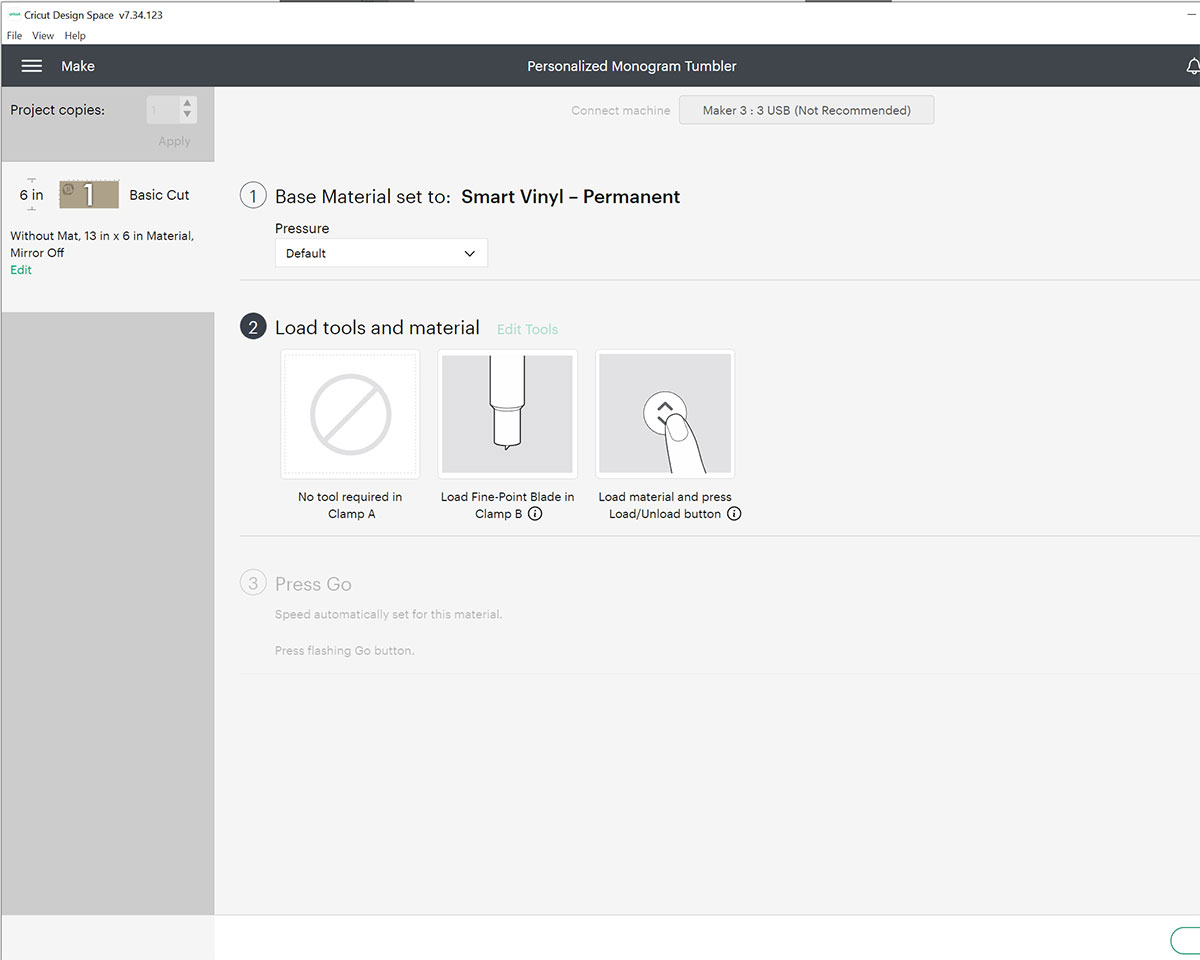
Click Continue and choose your Cricut machine from the following Connect menu. Next, choose Smart Vinyl – Permanent from the Set Base Material menu, and load your Smart Vinyl into your machine.
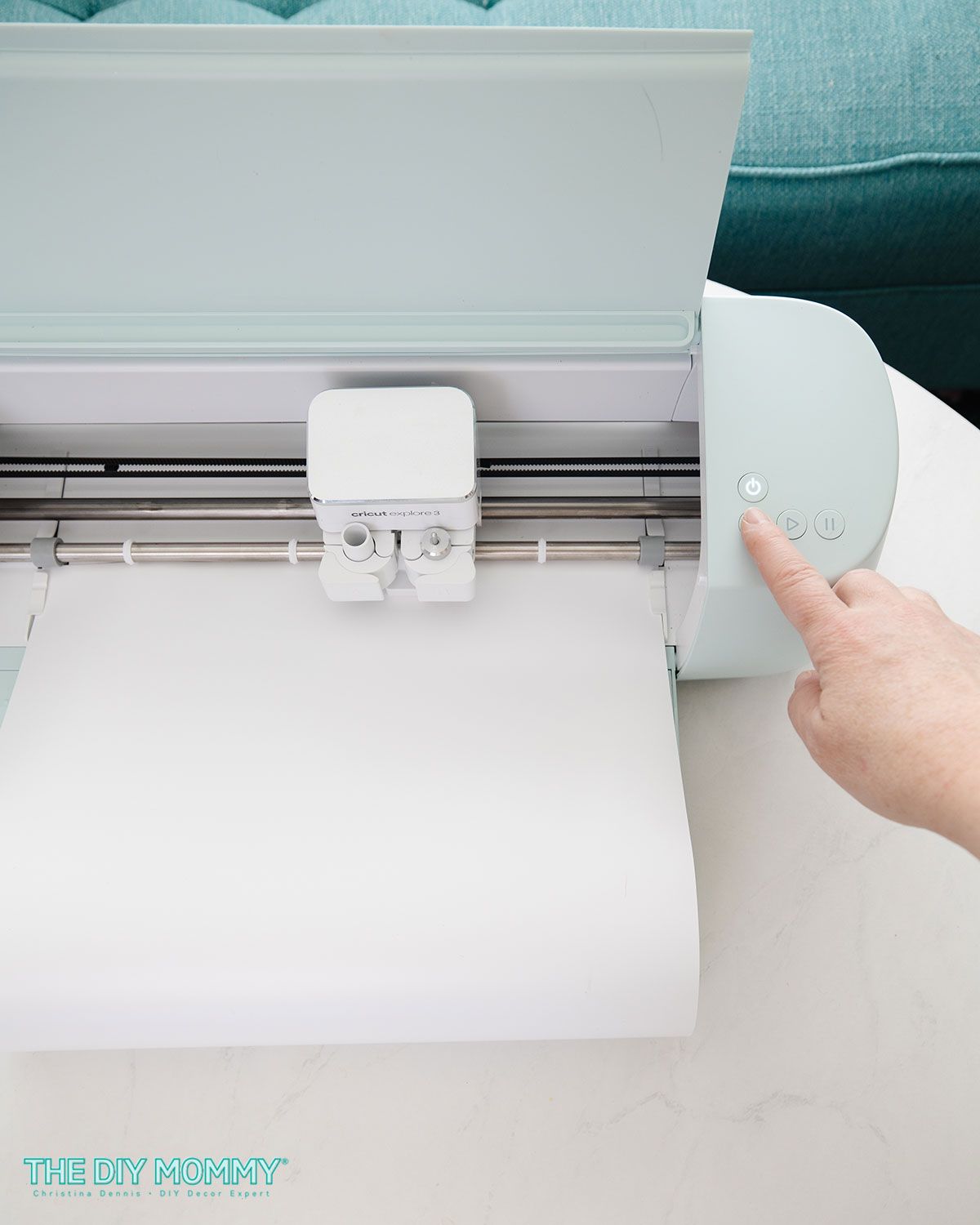
Hold the material up to the first roller of your machine (the good side up), and tap the Load button on the machine. Ensure you have the fine point blade in the clamp of your machine, and then press the Start button on the machine. The Cricut will start to cut, and it’s so fun to watch the process!
Assemble the final product
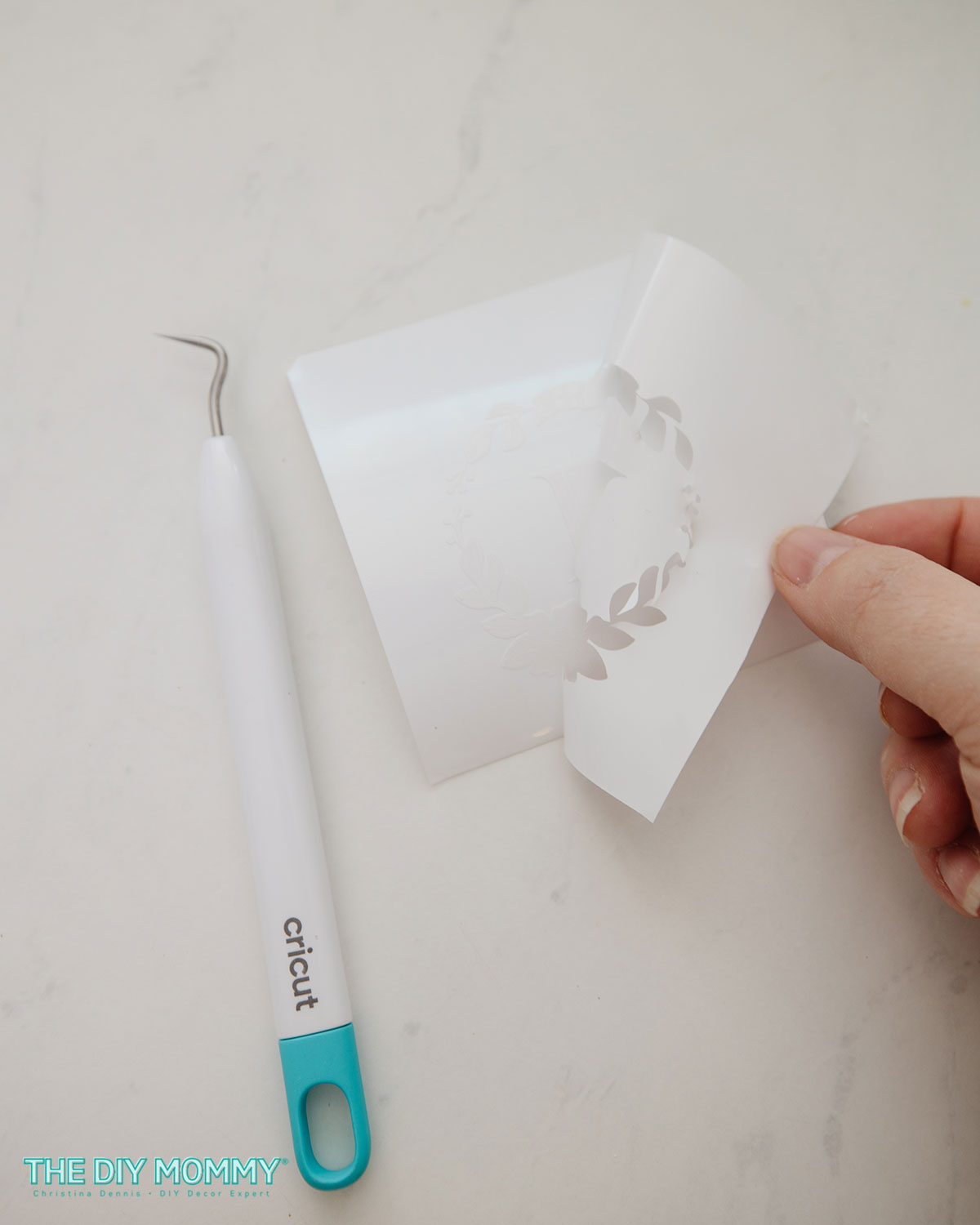
Once your design has finished cutting on the vinyl, press the Load button again and the vinyl will unload from your Cricut machine. You can trim away any excess vinyl with scissors or a trimmer and then weed away the vinyl that’s not part of your design with your fingers and weeding tools.
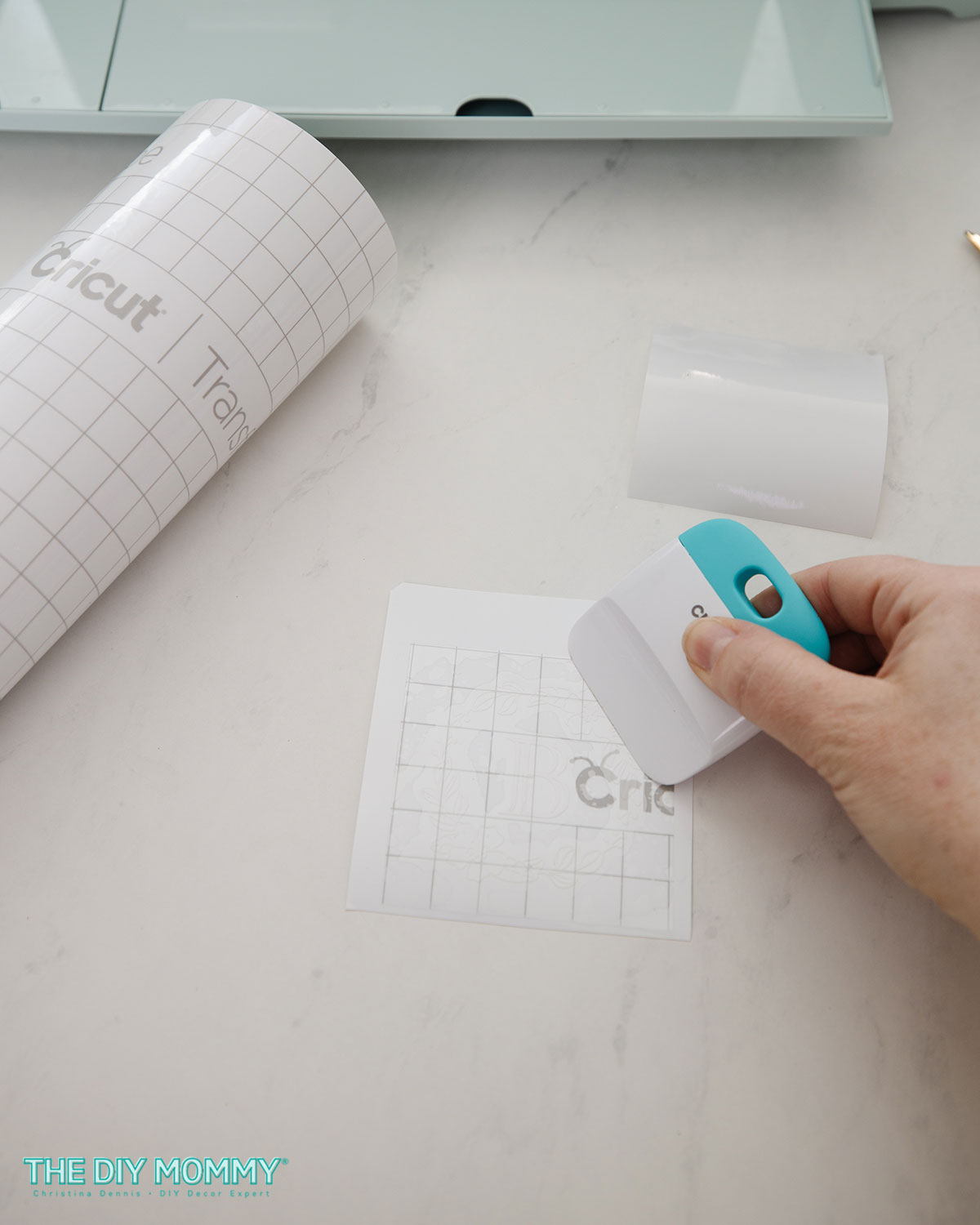
Now that the excess vinyl is gone, cut a piece of Transfer Tape that’s at least the same size as your design, remove it from its backing, and apply it on top of your vinyl design. Smooth it out with your hand or a scraper tool. I recommend scraping/smoothing the back of the design as well.
Tip: For easiest Transfer Tape application, I find it best to curve the Tape up slightly and apply it to the vinyl design from the centre outward.
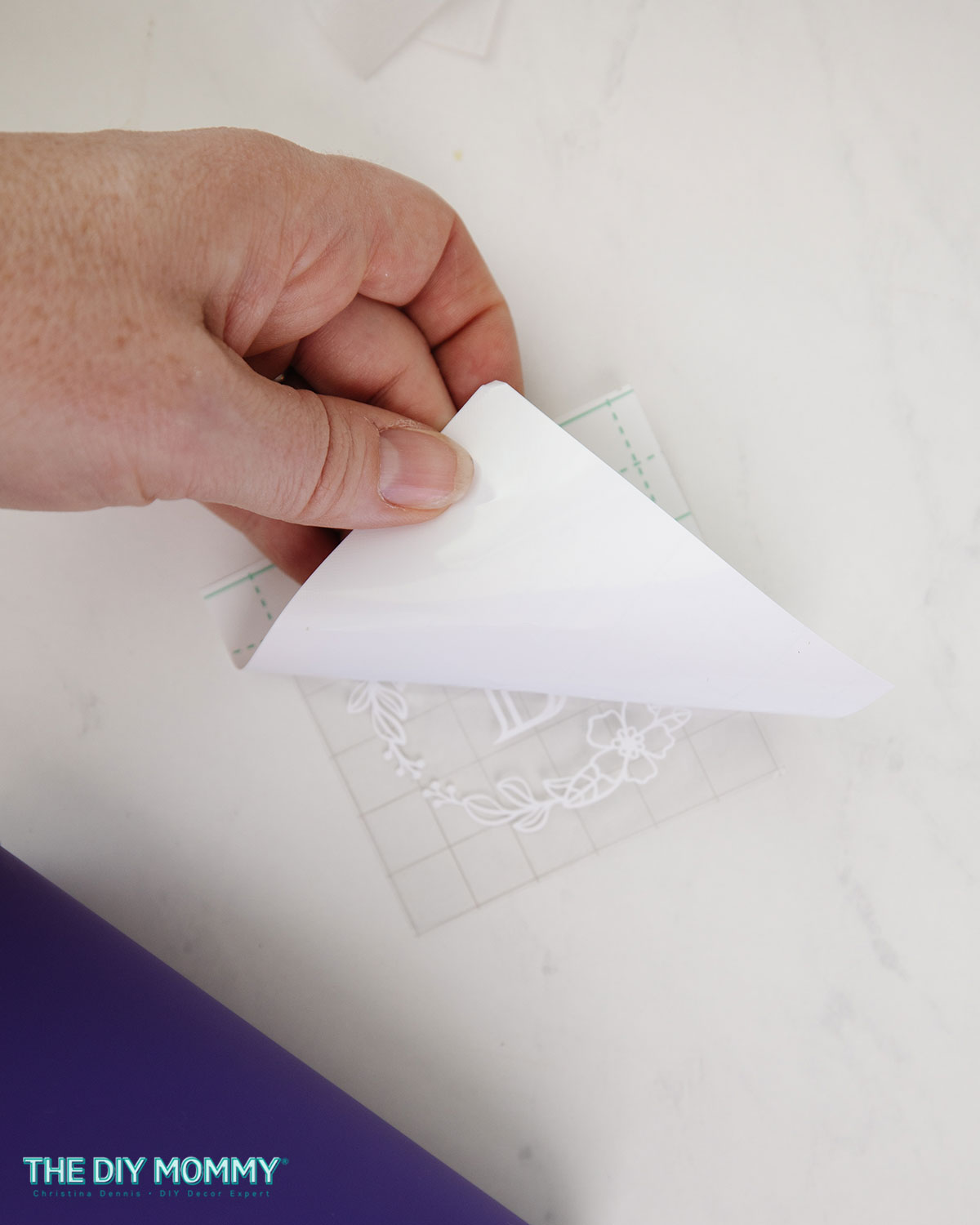
Next, flip the design over to its backside and carefully remove the backing from the design + Transfer Tape.
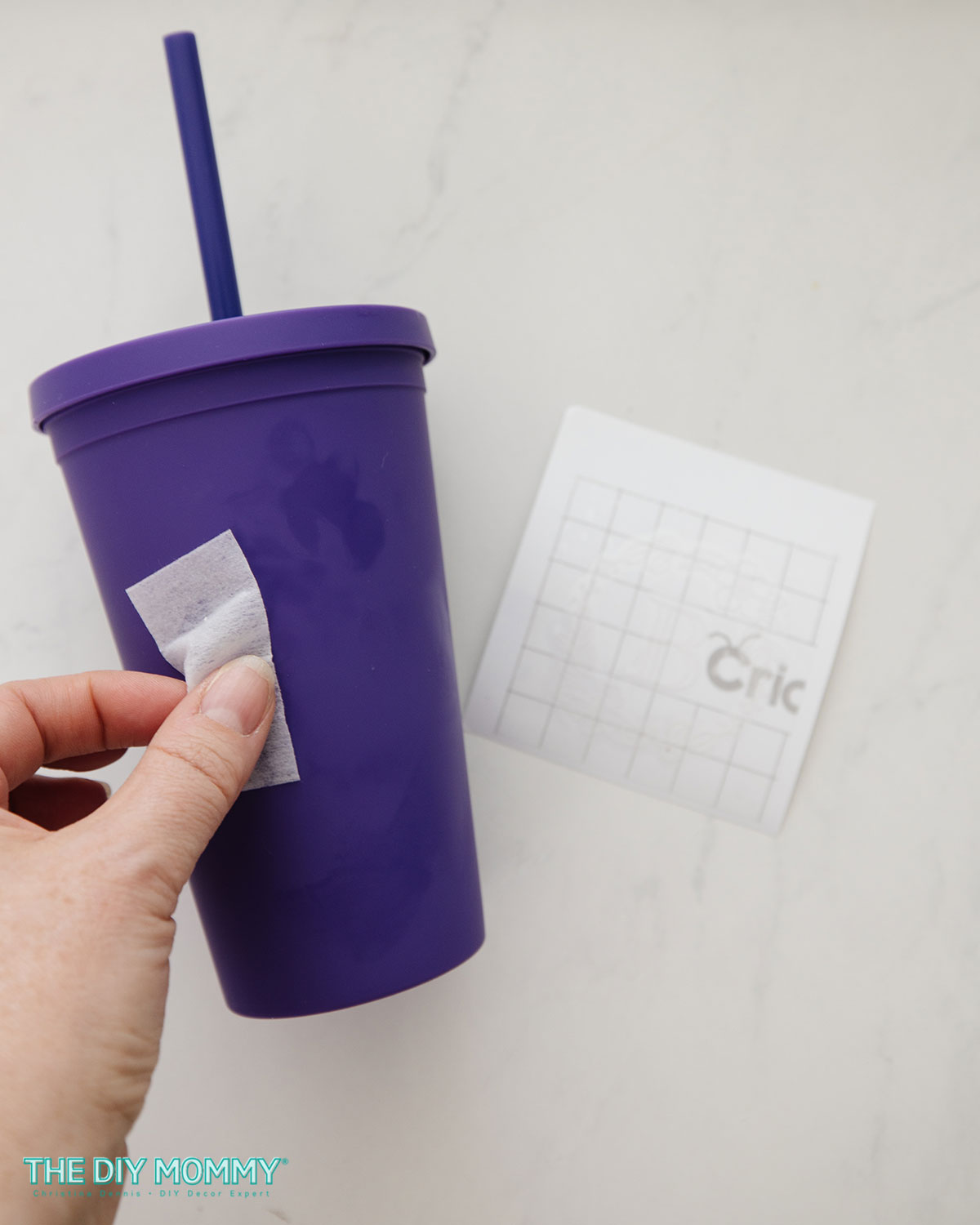
Prepare your tumbler by wiping it clean with an alcohol pad. This step will help the smart vinyl adhere better.
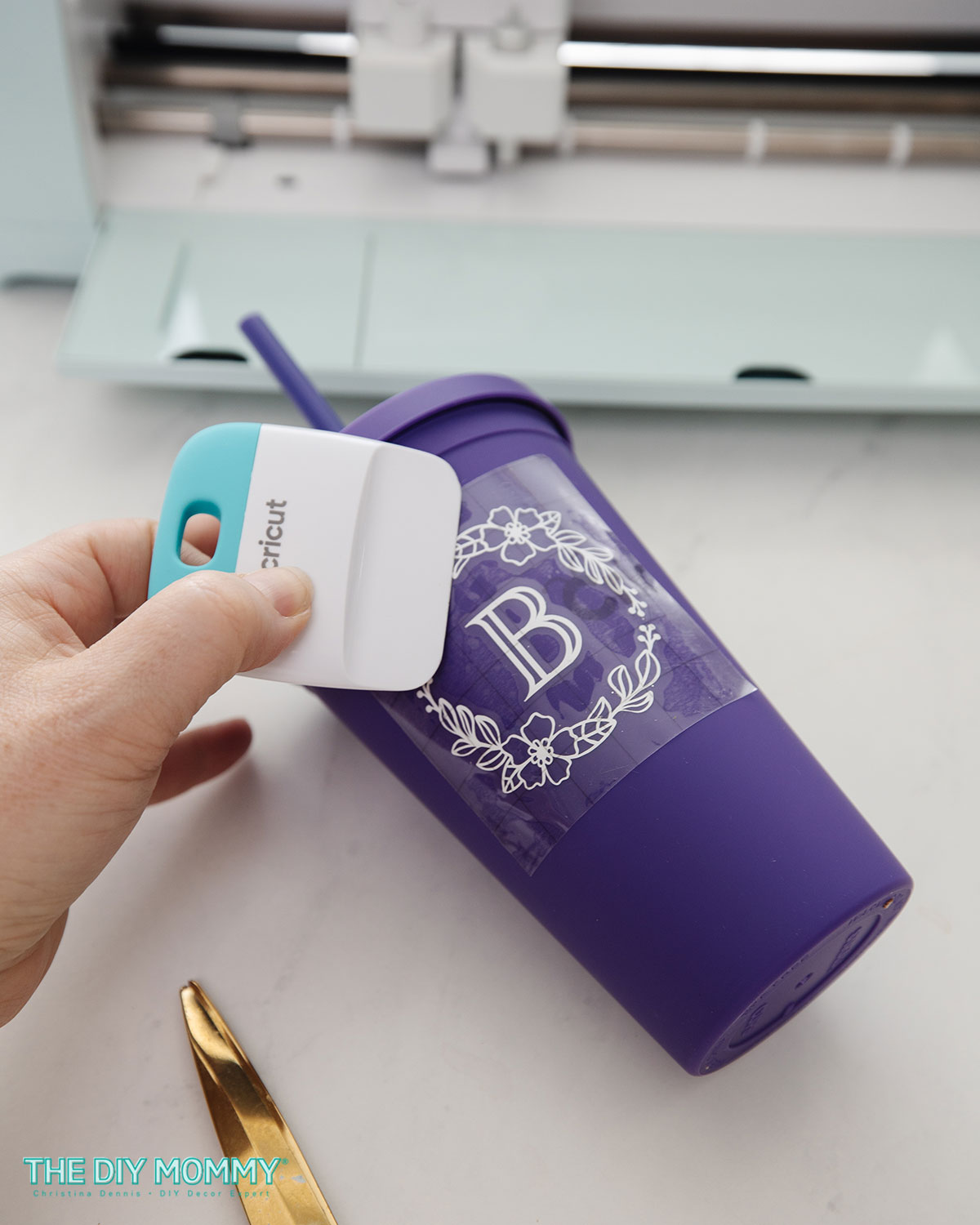
When it’s dry, carefully position the vinyl design on top and adhere it well to the tumbler with your hand and a scraper tool.
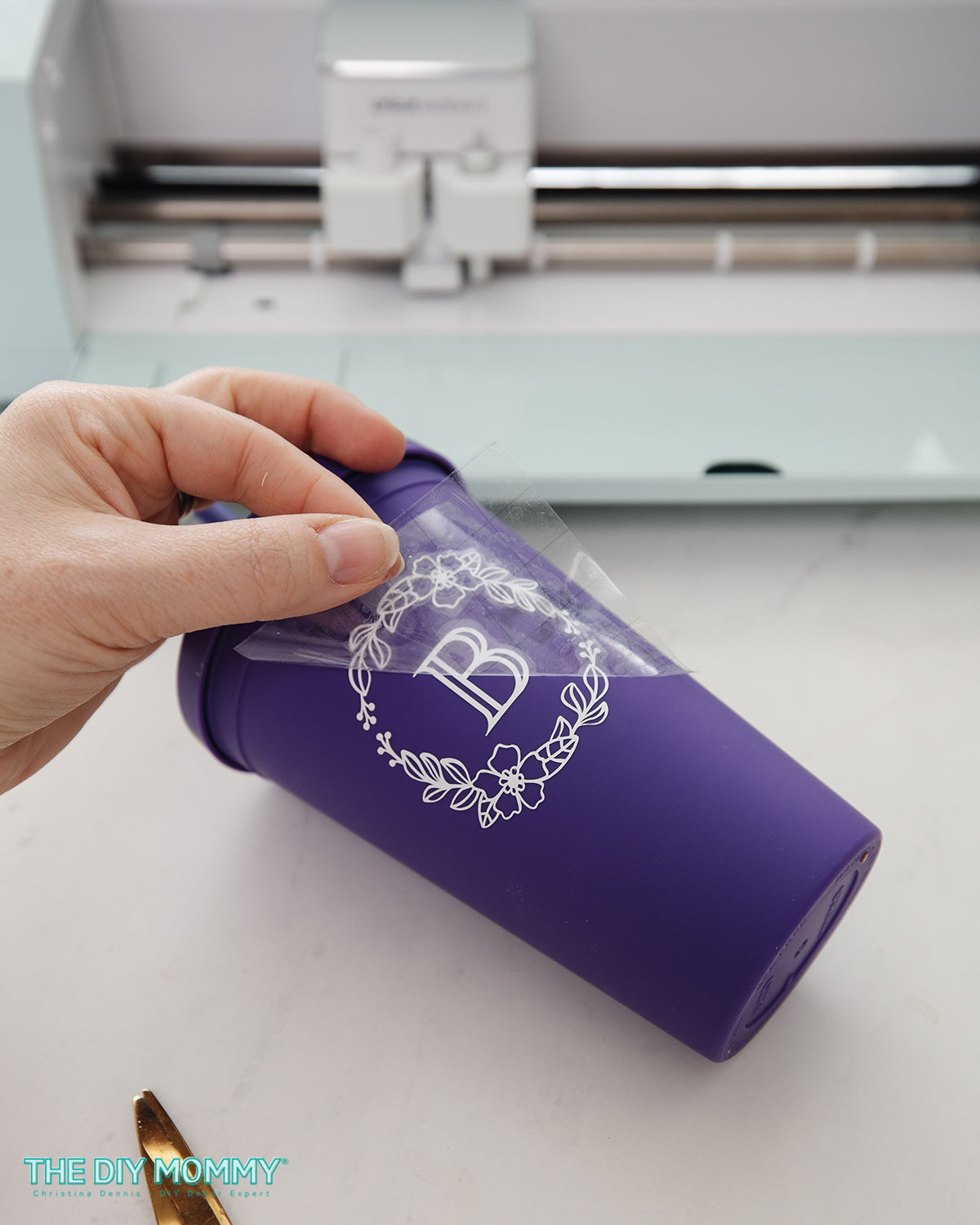
Finally, carefully remove the transfer tape from the design by rolling and pulling it back.
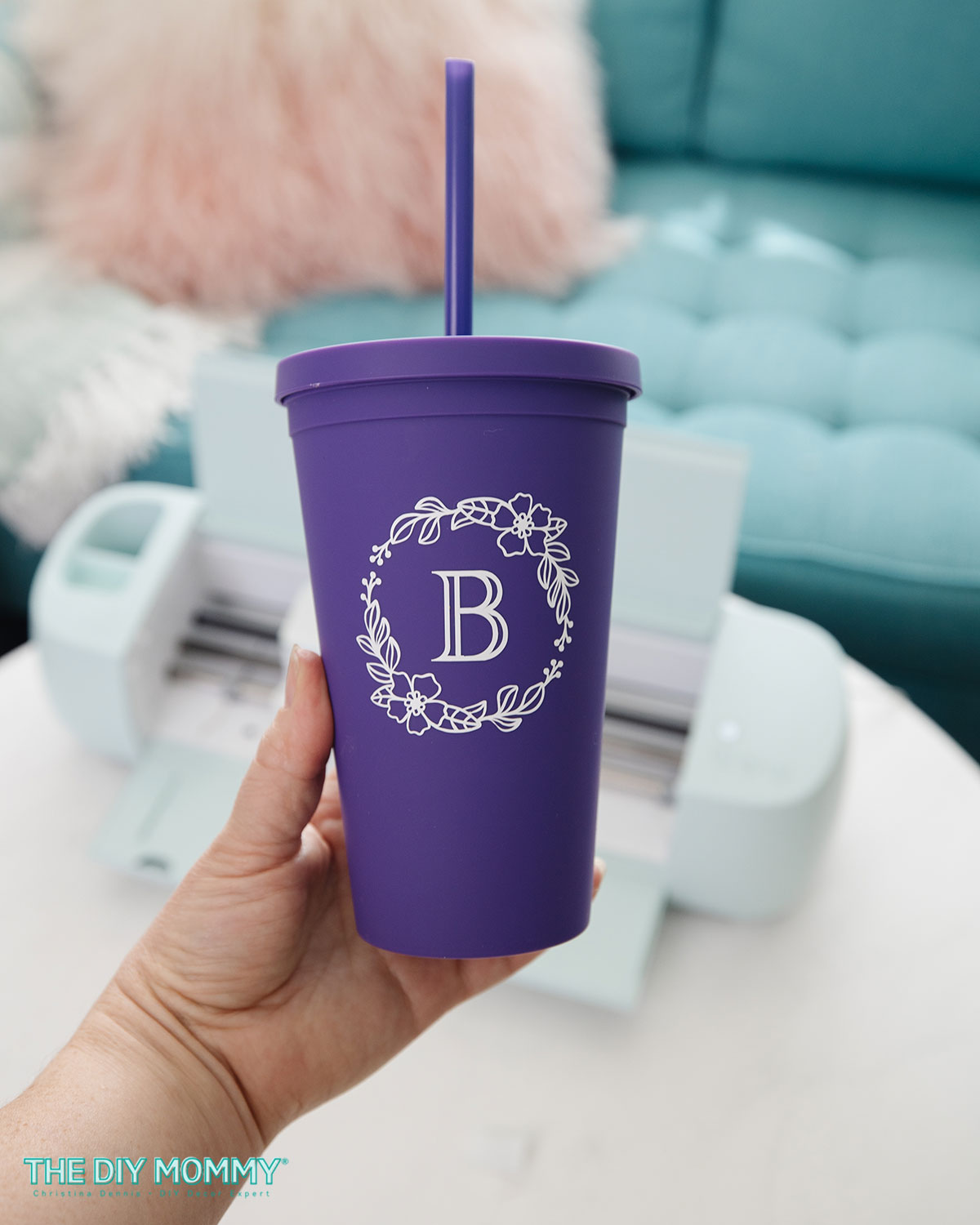
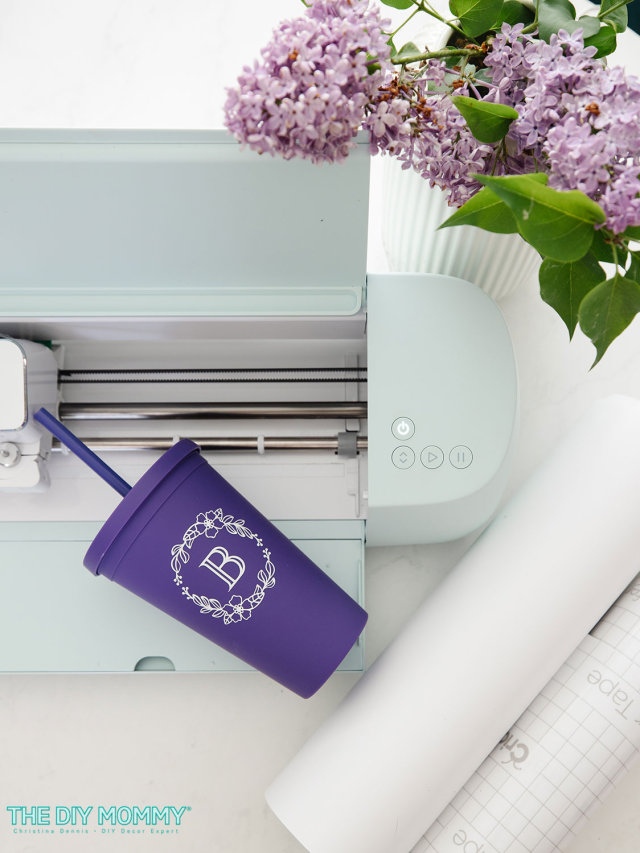
You’re all done & ready to enjoy your custom tumbler! It makes a beautiful gift! It would also be a wonderful product to sell at a craft market or in an online shop. If applied correctly, I find that finished tumblers like this are usually top rack dishwasher-friendly.
What Else to Craft with Cricut
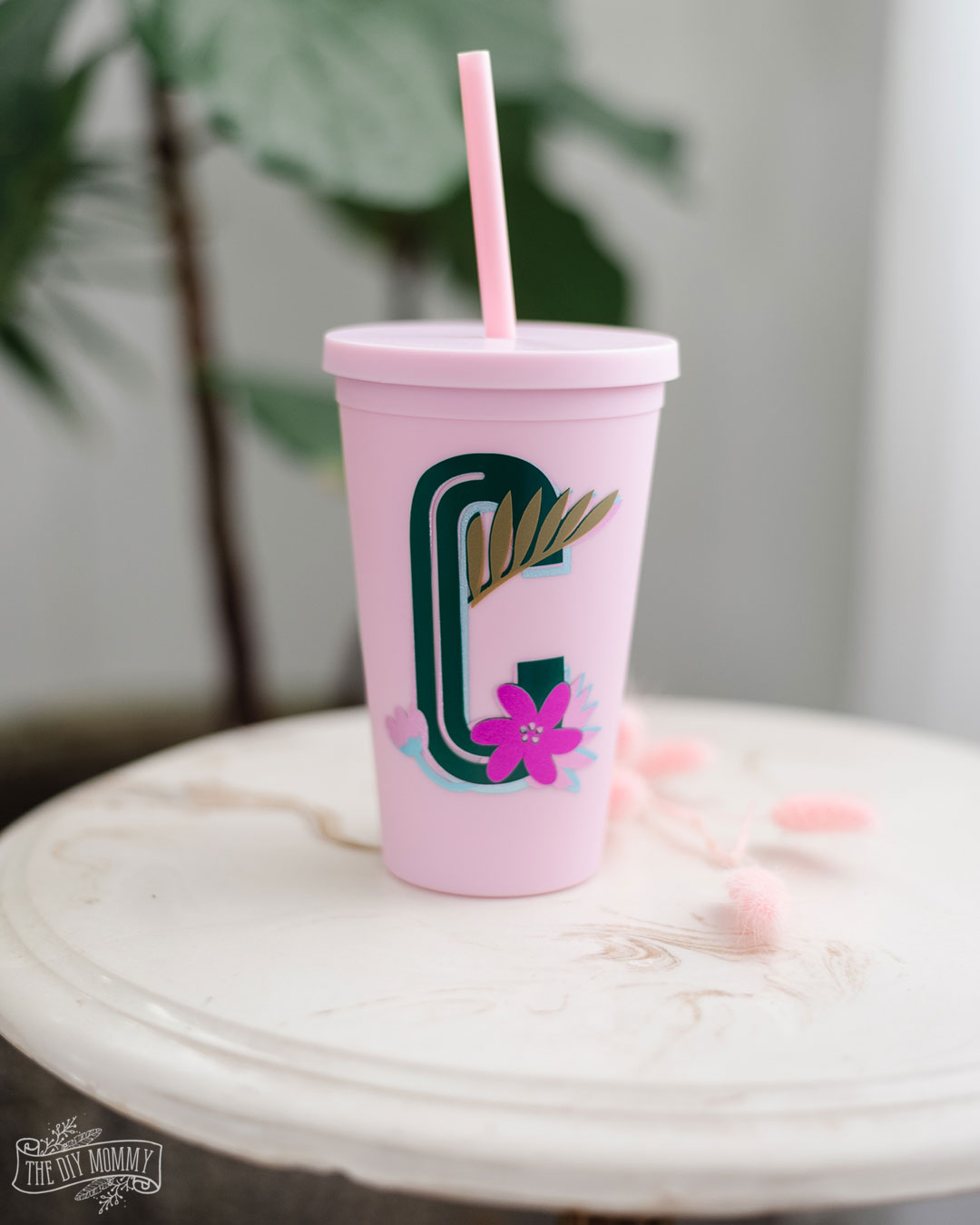
Do you want to experiment with different colours of vinyl and with layering vinyl? Try this DIY floral monogram tumbler! How about working with Iron-On HTV next? Check out these cute personalized socks that would make a great gift! For my entire list of Cricut project ideas, click here.
I hope this list of Cricut essentials and the starter project helped you feel more confident about diving into the world of Cricut crafting! Remember, the best way to learn is by experimenting and having fun with your projects.
I’d love to see what you create, so be sure to share your DIYs on social media and tag me @thediymommy — I can’t wait to check them out!
Pin Me!


This post is super helpful! I’ve been wanting to dive into Cricut projects, and your list of essentials really simplifies the process. I can’t wait to get started! Thanks for sharing such great insights!